Yes — your iPhone can transcribe an entire lecture as it happens, no laptop or extra hardware needed. The question is how well: a lecture is 50–90 minutes of fast, technical, sometimes accented speech in a room with coughs, chair squeaks and projector hum. This guide covers what the built-in iOS tools can do, where they fall short for lectures, and how to get a reliable live transcript with Clearly.
Can the iPhone transcribe lectures out of the box?
Partly. Apple's Voice Memos and Notes can produce transcripts of recordings, and they're fine for short, clean audio like a voice note to yourself. For lectures they run into three limits:
- No live view. You mostly get the text after the fact, so you can't glance down mid-class to catch a sentence you missed.
- No academic vocabulary support. Terms like "heteroskedasticity" or "mitochondrial biogenesis" often come out mangled, and there's no context tuning for your course.
- No translation or summaries. The transcript is raw text — everything after that (translation, key points, exam notes) is still on you.
A dedicated lecture transcription app treats the transcript as the starting point, not the product.
What matters in a lecture transcription app
- Live transcription you can read during class, with timestamps you can tap later.
- Accent recognition — professors come from everywhere; the model has to keep up.
- Academic-term support so subject vocabulary survives intact.
- Recording + transcript together, so every line of text links back to the audio for verification.
- Something useful after class: summaries, key points, and a way to query the content.
How to transcribe a lecture on iPhone with Clearly
- Download Clearly free from the App Store and open it before class.
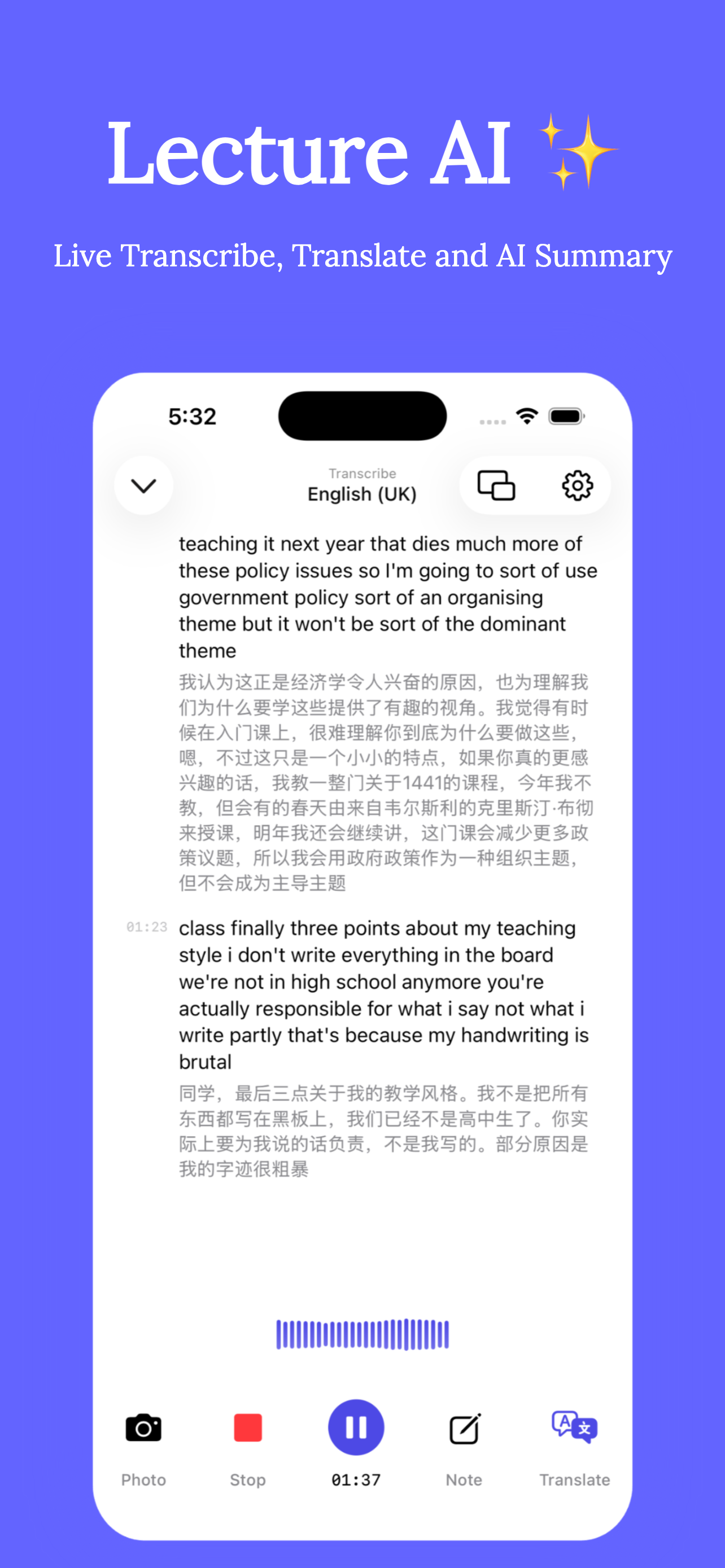
- Choose the lecture language (e.g. English UK/US) — and, if you want it, a translation language for bilingual captions.
- Tap Record as the professor starts. The live transcript scrolls in real time, with accent recognition and academic-term support.
- Glance at your phone whenever you lose the thread — the last few sentences are right there as text.
- Tap Stop at the end. Clearly saves the audio, the timestamped transcript, and generates an AI summary with key points automatically.
Tips for a cleaner transcript
- Sit closer to the front. Distance to the speaker is the #1 accuracy factor in big halls.
- Place the phone face-up on the desk, mic end toward the lecturer; don't cover it with papers.
- Import the slides into Clearly so you can read them side-by-side with the captions — technical spellings on slides also help you fix any misheard terms later.
- Check the recording policy first — most professors are fine with personal-study recording, but ask. See our guide on whether it's legal to record lectures.
After class: don't re-read the whole transcript. Read the AI summary first, then jump into the transcript only where you need detail — that's the whole point of having timestamps.
Get Clearly free on the App Store
Live transcription, real-time translation in 75+ languages, AI summaries and an AI tutor — on iPhone & iPad.