A group discussion is harder to review than a lecture: several people take turns, ideas get revised mid-conversation, and the final decisions may be scattered across an hour of audio. Clearly's Group Discussion mode records the room, transcribes the conversation live, separates speakers, and turns the result into structured notes you can share with the group.
What Group Discussion mode does
- Records and transcribes live. Follow the conversation as text while it happens, with every turn linked to its place in the audio.
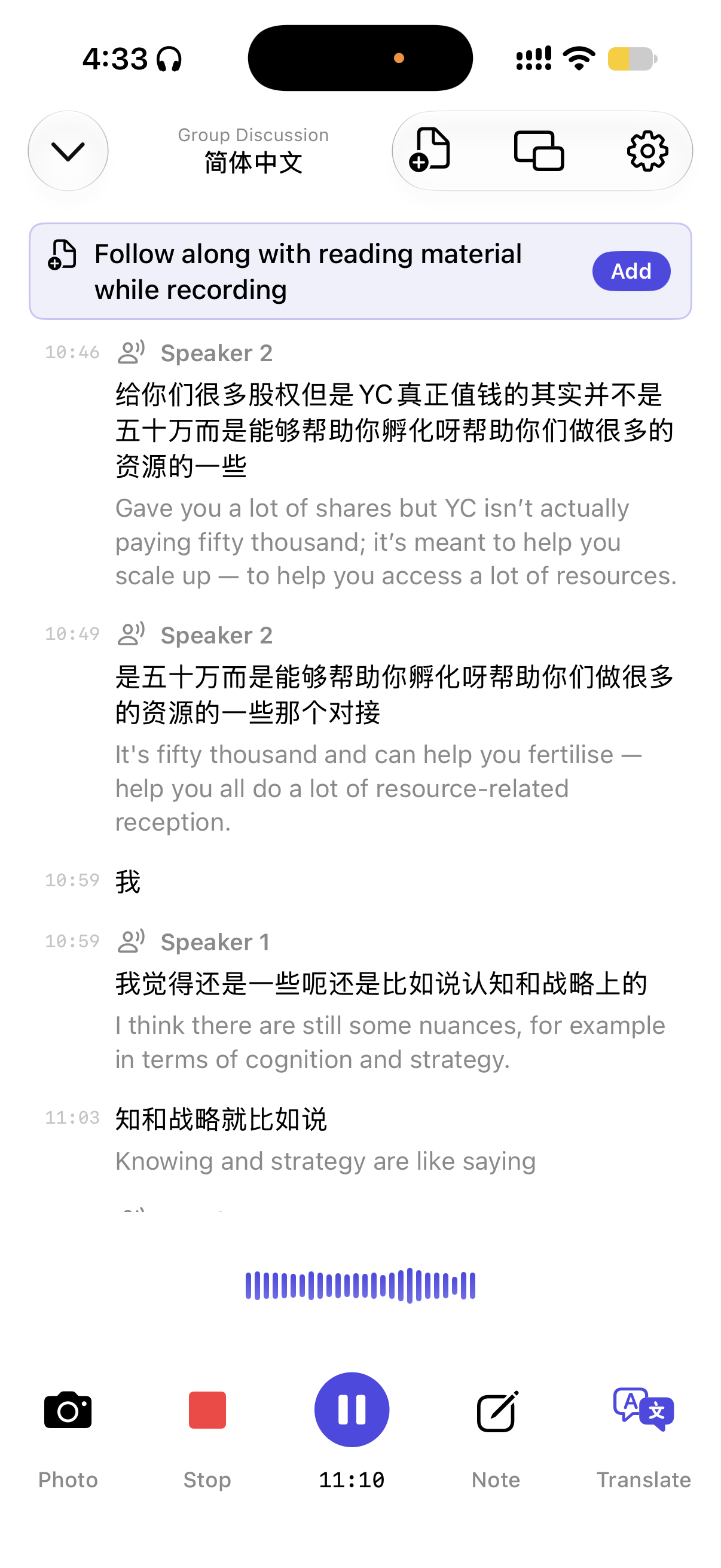
- Separates different voices. Clearly labels each detected voice as Speaker 1, Speaker 2, and so on, so the transcript reads like a conversation instead of one block of text.
- Lets you rename speakers. After recording, replace generic labels with names such as Maya, Daniel, or Tutor; the names carry through the transcript and summary.
- Supports live text translation. Choose a target language to see translated text during the discussion. Spoken translation is available when headphones are connected, so translated audio does not feed back into the room recording.
- Creates discussion-ready AI notes. The generated notes organize the conversation into a summary, key takeaways, decisions, and action items.
- Exports a shareable PDF. Share or save the discussion notes, with the option to include the full transcript. The audio recording itself is never added to the PDF.
When to use it
Use Group Discussion mode when several people in the same room need to be captured separately: a seminar, tutorial, study group, project meeting, interview panel, research discussion, or team retrospective. For a lecture where one person is speaking from the front of a large room, use the regular recording mode instead; its microphone setup is tuned for a distant main speaker.
Set up the room for clearer speaker detection
- Put the iPhone or iPad near the center of the group, face-up and uncovered. Group Discussion mode uses a room-oriented microphone profile designed to capture voices around a table.
- Reduce overlapping speech. Clearly can follow normal turn-taking, but no transcription system is perfect when several people talk over one another.
- Choose the language people will speak before recording. If the group switches languages often, use the language that dominates the conversation.
- Connect headphones for spoken translation. Text translation works without them; headphones are required only when you want the translated audio read aloud.
- Ask everyone before recording. Group conversations can contain personal or confidential information, and consent laws and organization policies vary.
How to record a group discussion with Clearly
- Open the relevant project in Clearly, open the add/import menu, and choose Record Group Discussion.
- Set the spoken language and, if needed, a translation language. Place the device near the center of the group.
- Start recording. Clearly displays the live transcript and assigns a separate speaker label as people take turns.
- Stop when the discussion ends, then open the transcript and tap a speaker label to replace it with the person's name.
- Review the AI-generated Summary, Key Takeaways, Decisions, and Action Items. Correct anything important before sharing.
- Choose Share with Group to create a PDF. Include the full transcript only if everyone should receive the complete conversation.
What is supported right now
Group Discussion mode is available in Clearly 1.23 and later. Speaker separation works for new live recordings made in this mode and requires an internet connection. Importing an existing audio or video file can still produce a transcript, but it does not currently separate multiple speakers. If speaker attribution matters, start the discussion from the dedicated mode rather than recording elsewhere and importing later.
Review before you share
Automatic speaker detection and AI notes save time, but they can make mistakes—especially with similar voices, overlapping speech, background noise, or people moving far from the device. Rename speakers, verify decisions and owners against the timestamped audio, and remove private details before exporting.
Privacy reminder: the discussion PDF includes the structured notes and, optionally, the transcript—not the audio. Recipients can still save or forward the PDF, so share only what the group has agreed to distribute.

Get Clearly free on the App Store
Live transcription, real-time translation in 75+ languages, AI summaries and an AI tutor — on iPhone & iPad.