Class readings can be harder to follow than lecture slides: the language is dense, the paragraphs are long, and switching between a PDF and a separate translator breaks your concentration. New in Clearly 1.24, you can import reading materials into a project and open them in a bilingual reader, with the original text and translation kept together page by page.
What the bilingual reader supports
- Import common class materials. Add a PDF, Word document, PowerPoint, plain-text file, or Markdown document to your Clearly project.
- Choose the view that fits the moment. Switch between Original, Bilingual, and Translation modes without creating separate copies of the reading.
- Keep both languages together. Bilingual mode pairs each source block with its translation, making it easier to check terminology and meaning as you read.
- Translate one page at a time. Clearly prepares the active page as you move through the document, so you can start reading without waiting for the whole file.
- Return to the exact source page. Open the original page whenever layout, diagrams, formulas, tables, or footnotes matter.
- Attach notes to the reading. Add a note beside a relevant paragraph and keep it connected to the source page for later review.
Why this helps before and during class
Before class, bilingual reading helps you learn the subject vocabulary without losing the original wording your lecturer will use. During class, the imported document stays inside the same Clearly project as your recordings, transcripts, and notes, so you can return to the reading without rebuilding your study context in another app.
How to translate a class reading in Clearly
- Open a project in Clearly 1.24 or later and choose the option to import reading materials.
- Select a PDF, Word document, PowerPoint, plain-text file, or Markdown document from Files.
- Open the imported document and choose the language you want Clearly to translate it into.
- Select Bilingual to read the source text and translation together, or Translation when you want a cleaner translated-only view.
- Move through the reading page by page. If a chart, formula, table, or page layout needs checking, open the original page view.
- Add short notes beside important paragraphs so your questions and takeaways remain linked to the reading.
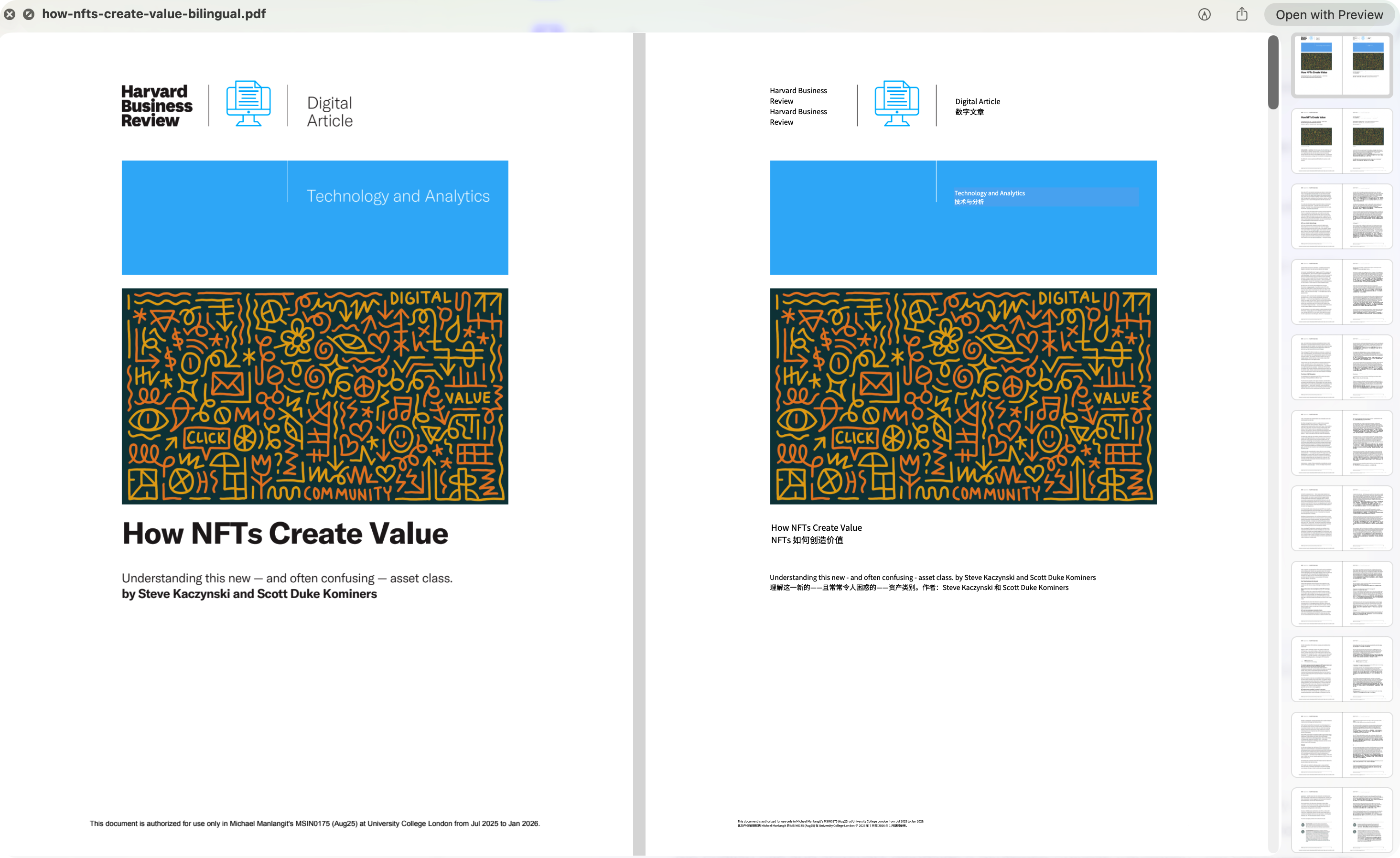
A real bilingual reading result
The screenshot above comes from a real 11-page English reading processed by Clearly. It shows the source PDF on the left and the translated bilingual version on the right—not placeholder copy—so you can compare the original layout with the English and Simplified Chinese result.
What to check while reading
Translation is designed to help you understand and review a source, not to replace the source itself. For specialist terms, quotations, formulas, and assessment-critical wording, compare the translated block with the English and check the original page. Translation requires an internet connection.
Respect course permissions: import readings you are allowed to use, and do not redistribute restricted course or library material just because you have translated it for personal study.

Get Clearly free on the App Store
Live transcription, real-time translation in 75+ languages, AI summaries and an AI tutor — on iPhone & iPad.